Last updated · 6 November 2026
Manual
This manual walks you through the app, using the dog bite checklist as an example. Swipe through the screens below. On each screen, the part to look at is highlighted.
-
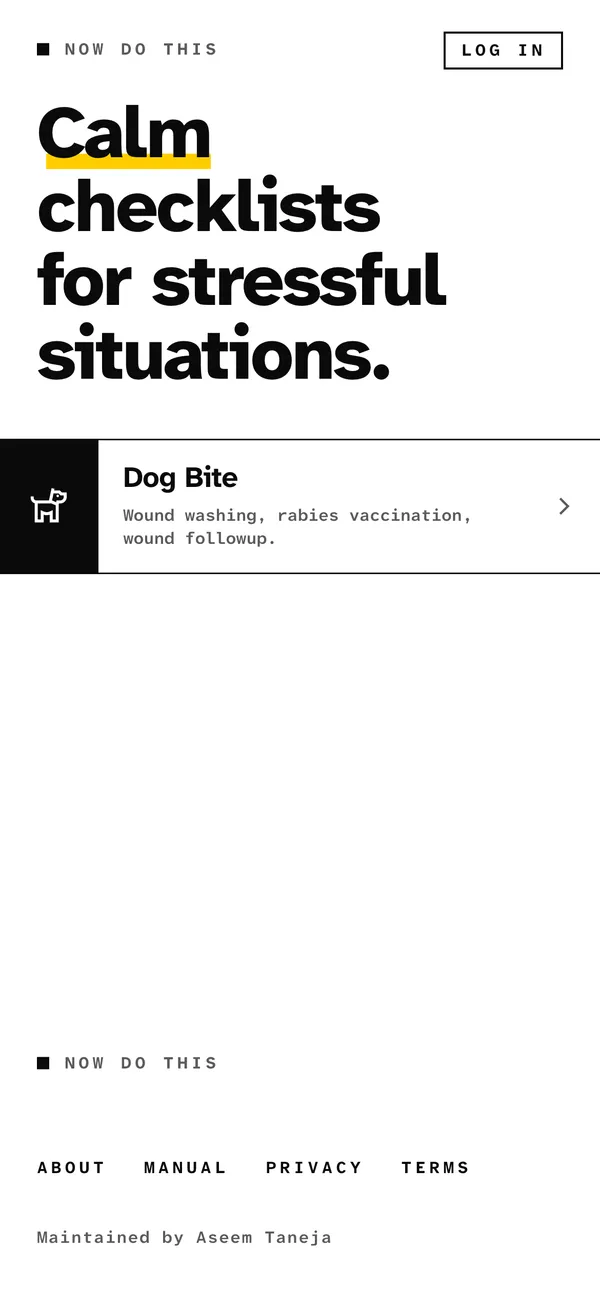
01 / 13
Pick the checklist for your incident.
-
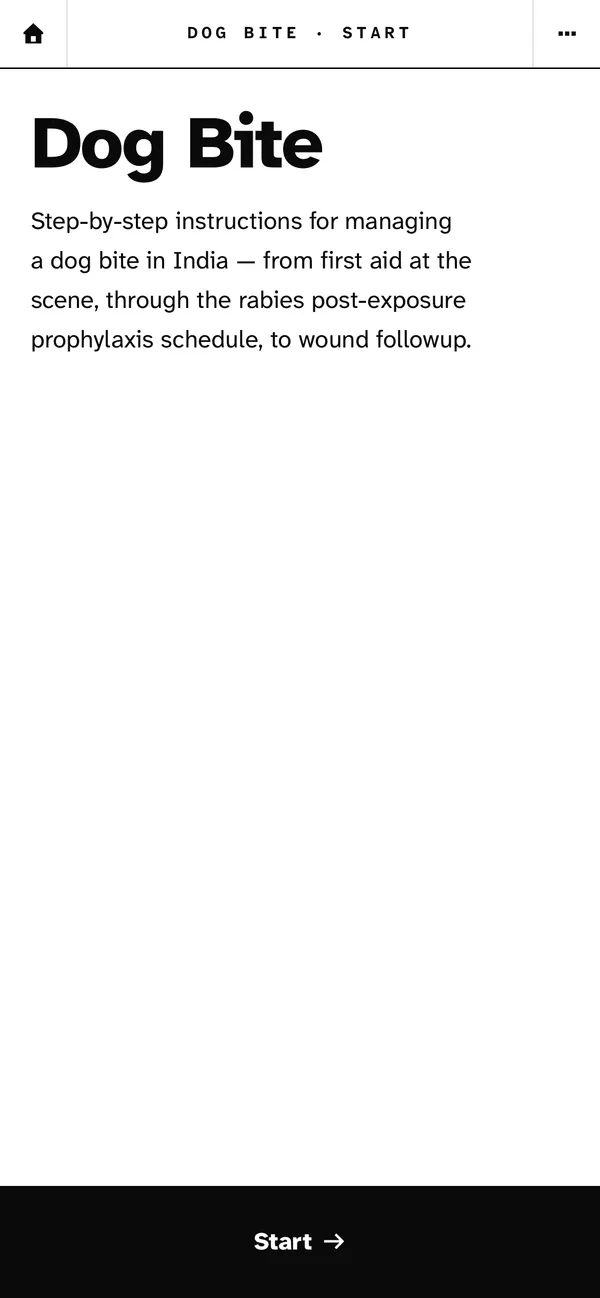
02 / 13
Tap Start to begin a session.
-
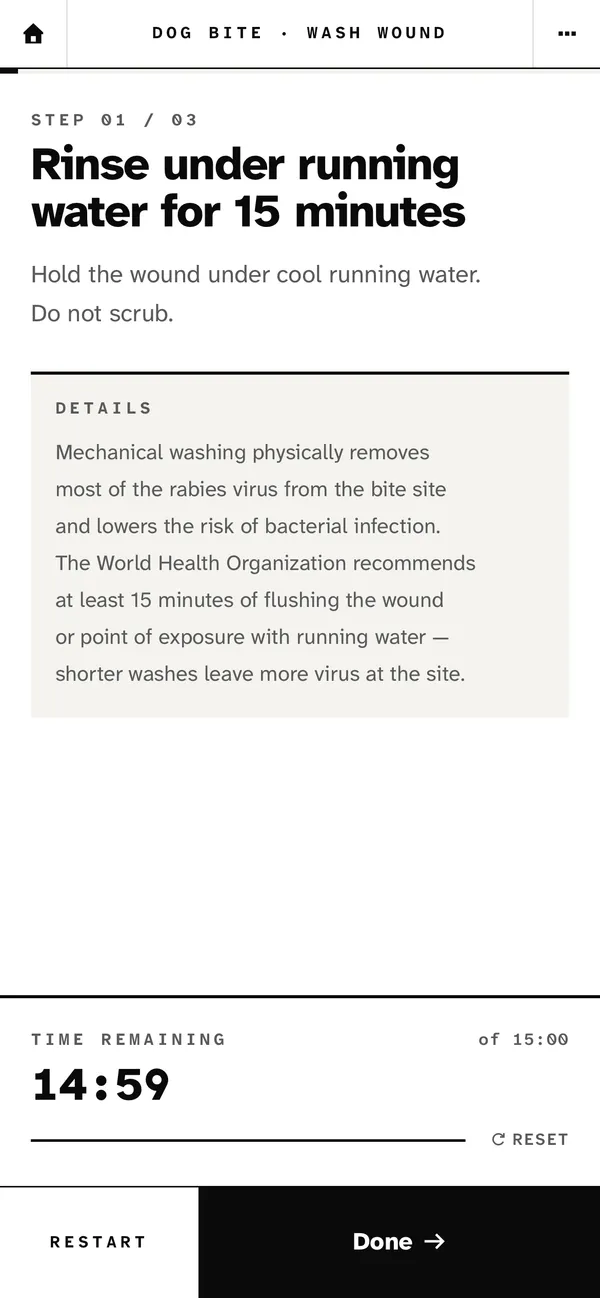
03 / 13
Steps show one at a time. Tap Done when you finish a step.
-
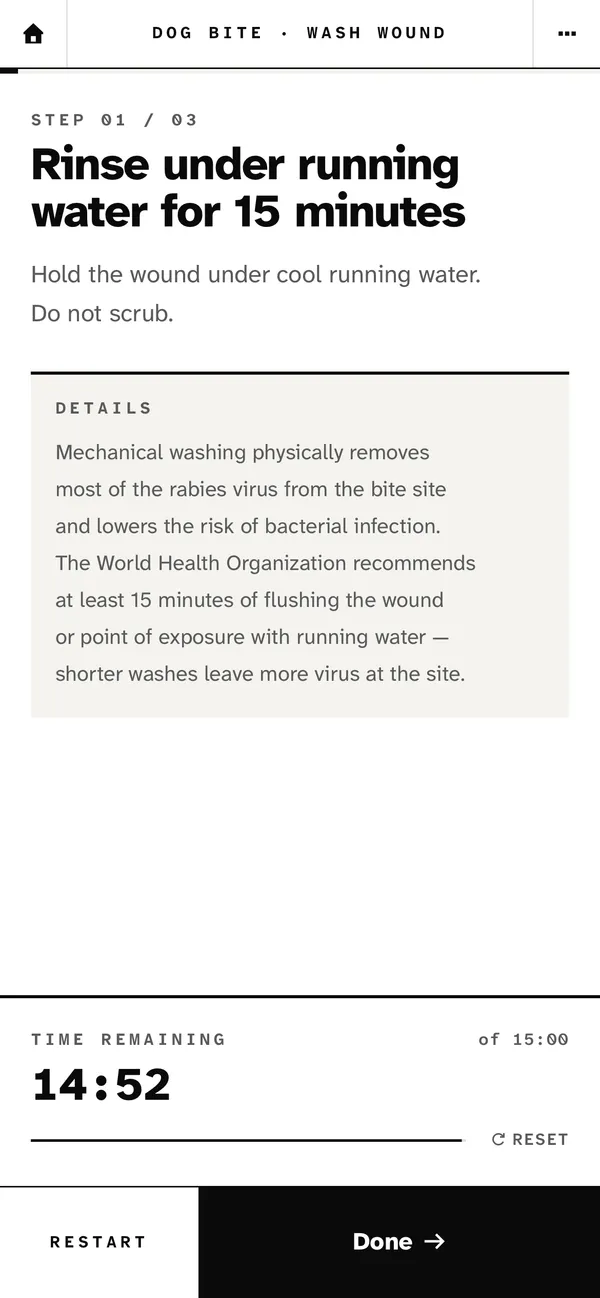
04 / 13
Some steps show a timer to guide you. You do not have to wait. Tap Done at any time.
-
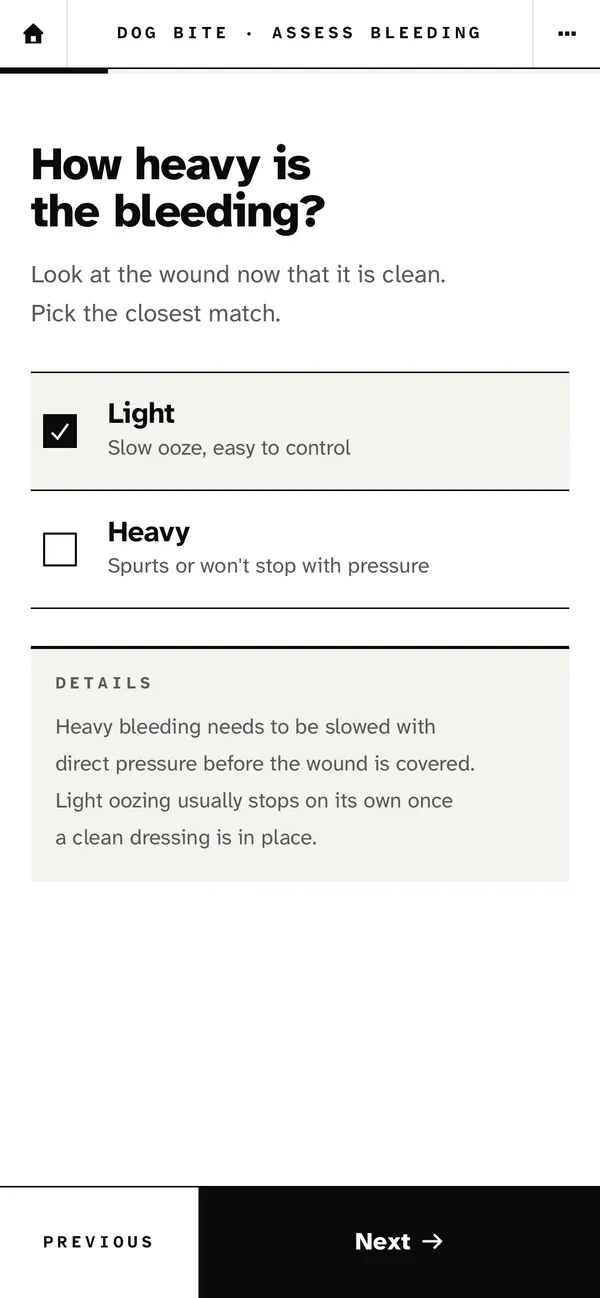
05 / 13
Pick the closest answer, then tap Next. Your answer decides the next step.
-
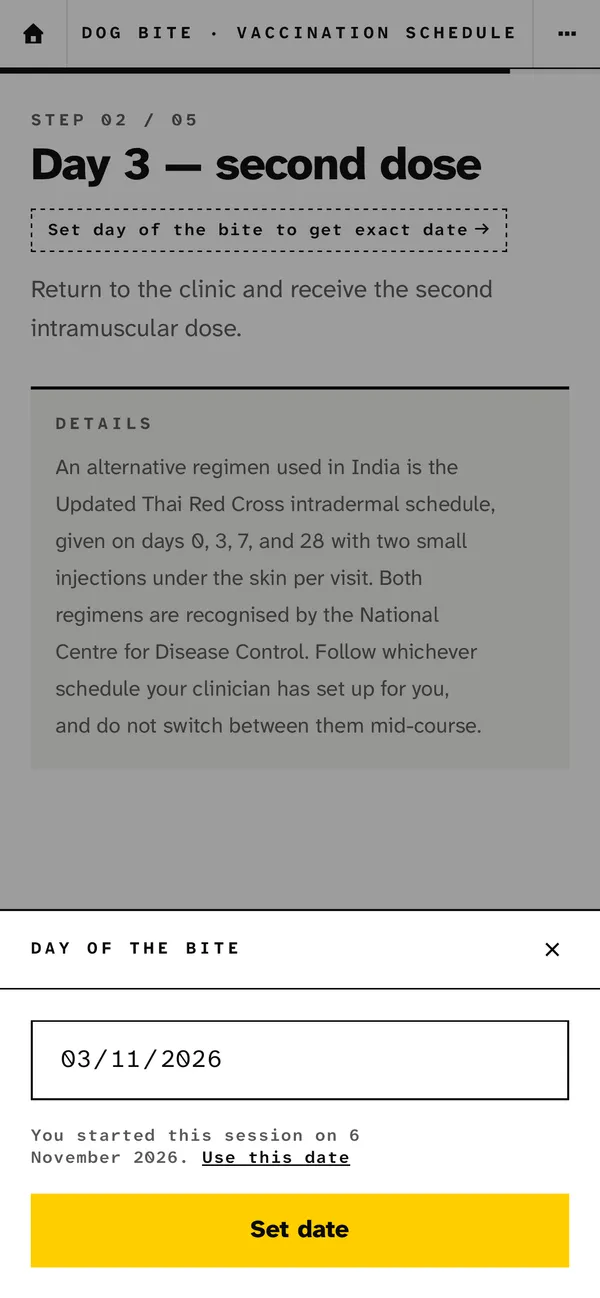
06 / 13
Some checklists count days from a date. Here, set the day of the bite.
-
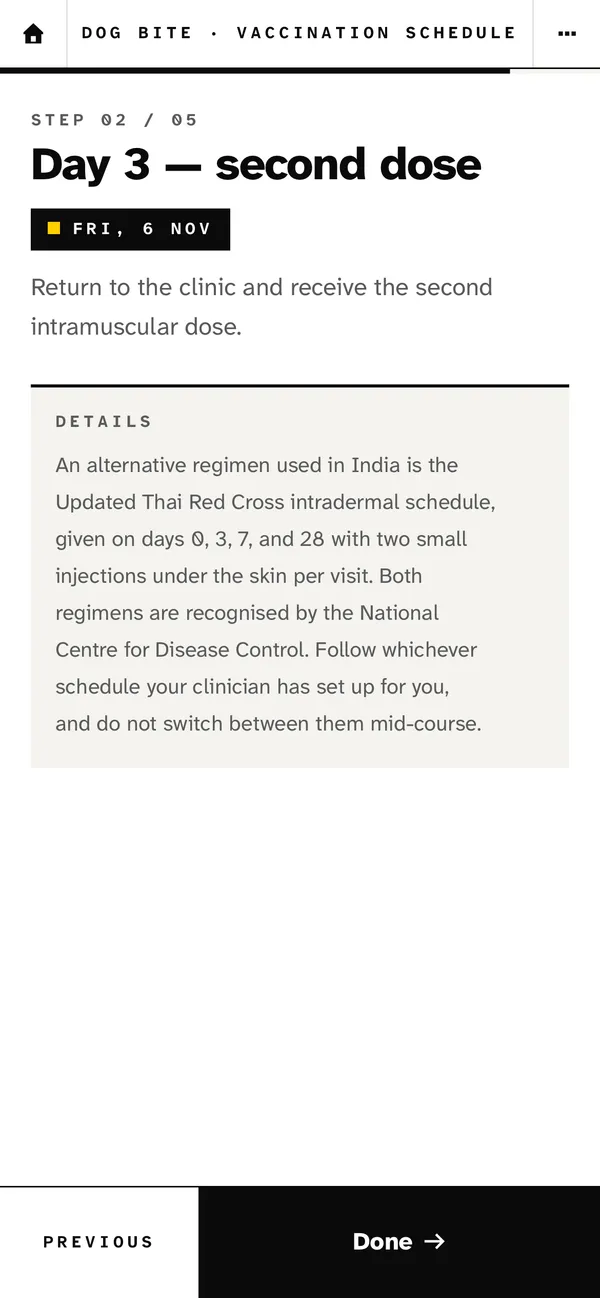
07 / 13
For a dog bite, each dose then shows its date on the calendar.
-
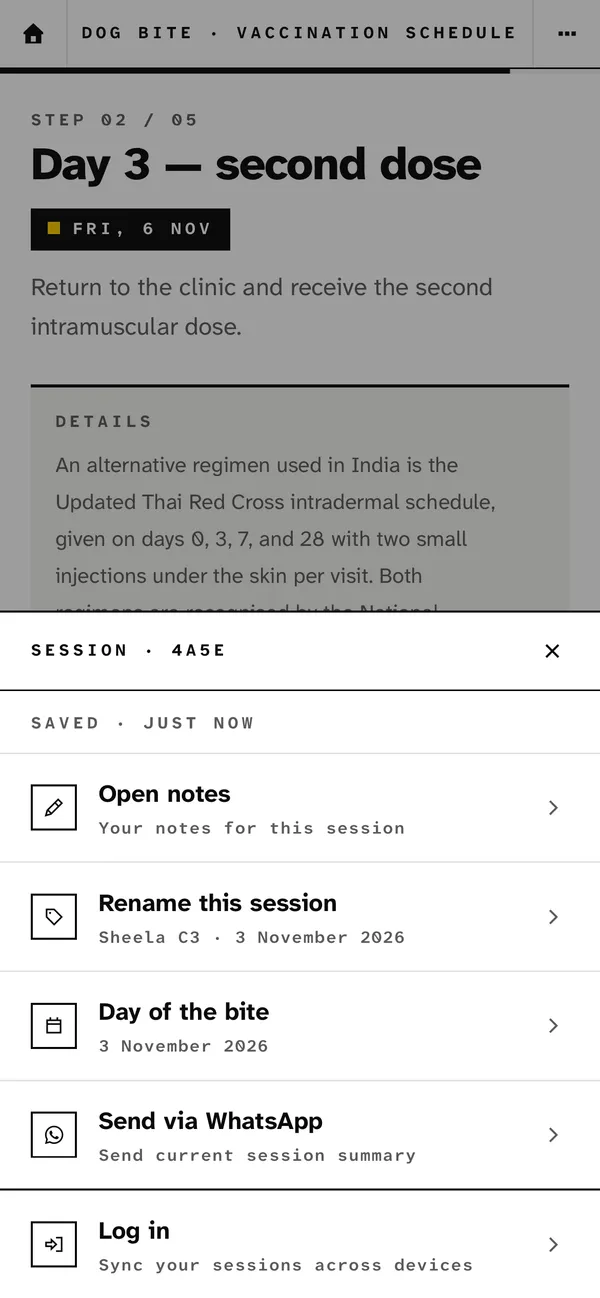
08 / 13
Tap at the top right for this session’s notes, name, day of the bite and sharing.
-
09 / 13
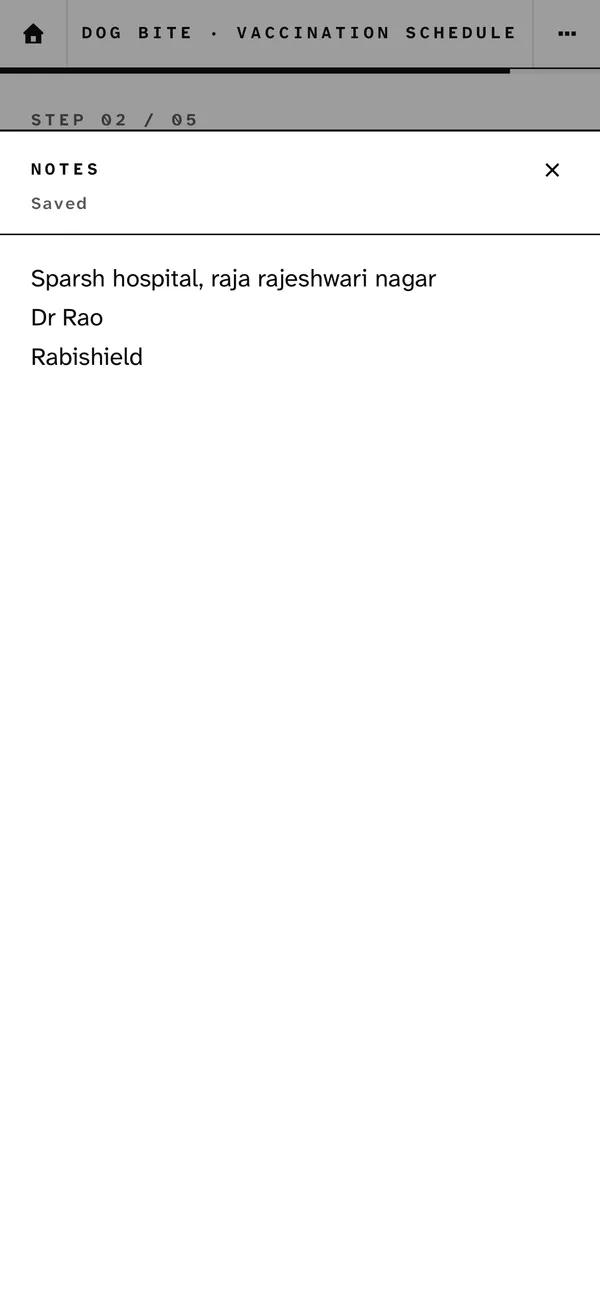
Write down what to remember. Notes save as you type, and stay private until you share them.
-
10 / 13
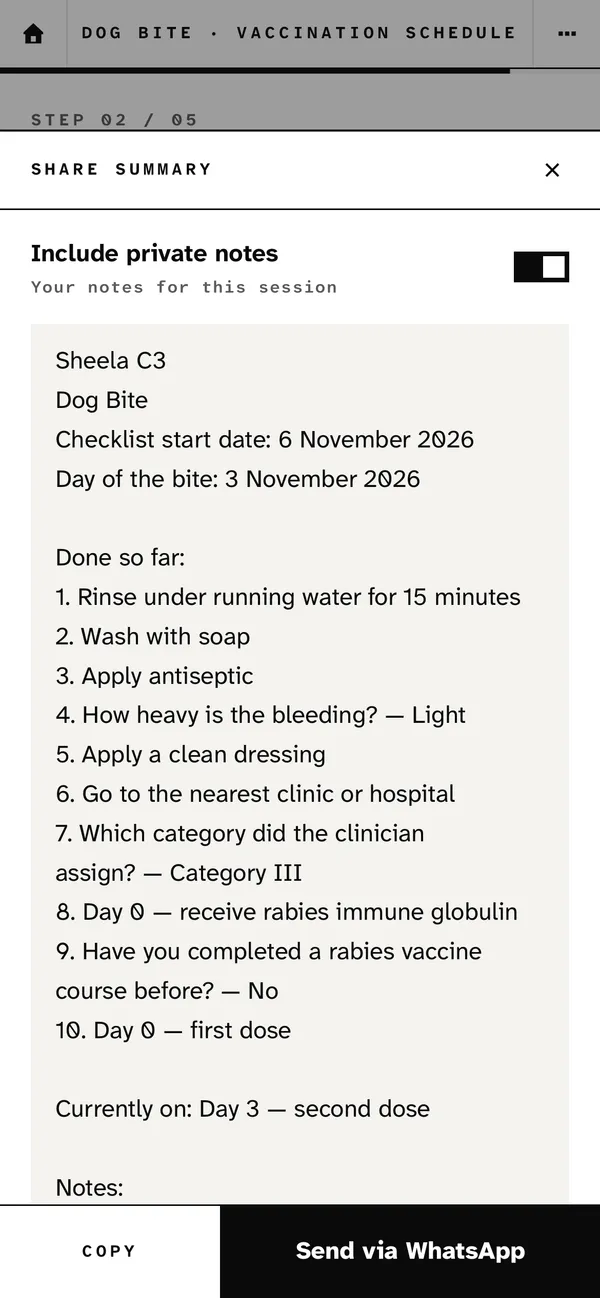
Send a summary on WhatsApp, or copy it. Turn on Include private notes to add your notes.
-
11 / 13
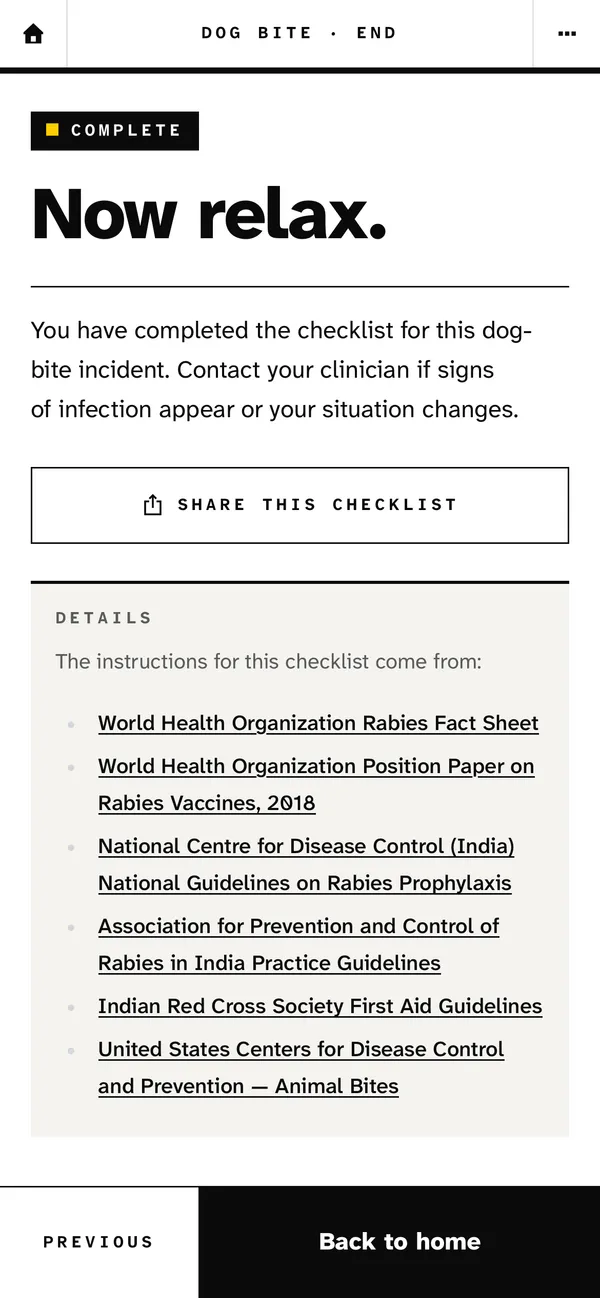
The end of the checklist lists the sources its steps come from.
-
12 / 13
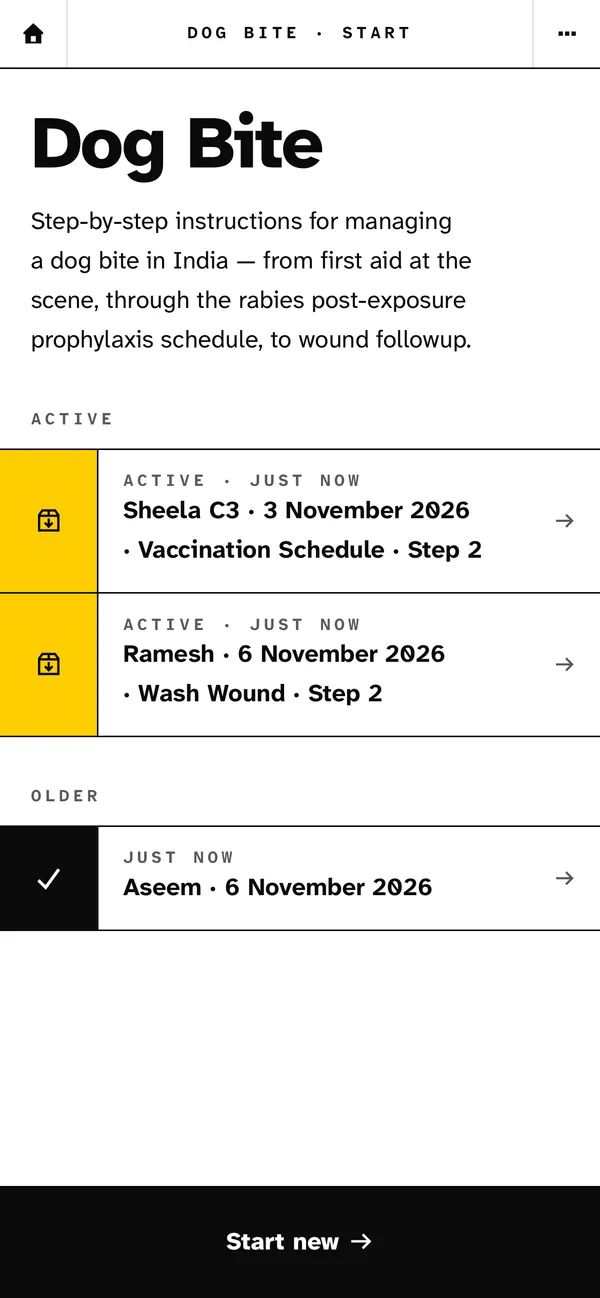
Start one session for each patient. Name each one to find it quickly, and tap it to continue.
-
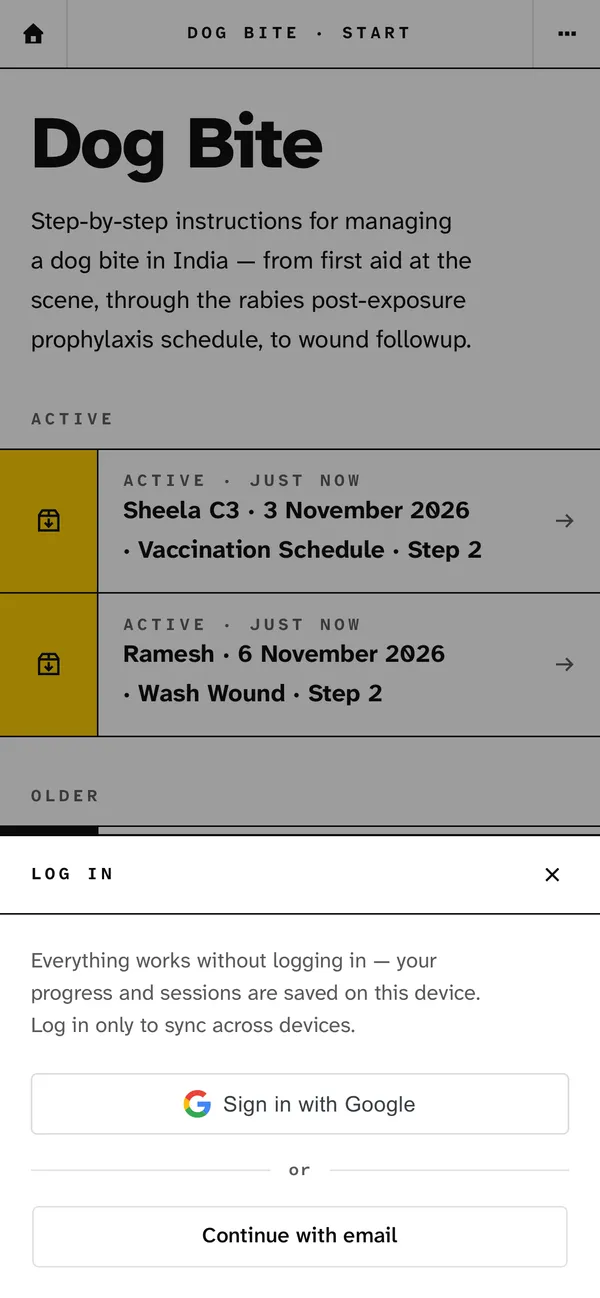
13 / 13
Everything works without logging in. Log in to use your sessions on another device too.


